Difference between revisions of "Apple iOS"
(→Transactions) |
|||
| Line 9: | Line 9: | ||
| − | ==Overview== | + | =='''Overview'''== |
| − | |||
| − | |||
[[iOS Gift/Loyalty]] | [[iOS Gift/Loyalty]] | ||
| − | |||
| − | ==Getting Started== | + | =='''Getting Started'''== |
'''1. Download the CHARGE Anywhere Payment App from the Apple App Store.''' | '''1. Download the CHARGE Anywhere Payment App from the Apple App Store.''' | ||
| Line 28: | Line 25: | ||
| − | ==<span style="color:#191970">[http://kb.chargeanywhere.com/index.php/IOS_QuickSale Swipe Card for QuickSale]</span>== | + | ==<span style="color:#191970">[http://kb.chargeanywhere.com/index.php/IOS_QuickSale '''Swipe Card for QuickSale''']</span>== |
If you have a card reader configured, a QuickSale (credit card sale) can be initiated from the home screen by swiping a credit card. For help setting up a peripheral card reader, see [[Peripheral Help]]. | If you have a card reader configured, a QuickSale (credit card sale) can be initiated from the home screen by swiping a credit card. For help setting up a peripheral card reader, see [[Peripheral Help]]. | ||
| Line 34: | Line 31: | ||
[http://kb.chargeanywhere.com/index.php/IOS_QuickSale '''Click Here'''] for screenshots of the entire QuickSale process. | [http://kb.chargeanywhere.com/index.php/IOS_QuickSale '''Click Here'''] for screenshots of the entire QuickSale process. | ||
| − | ==<span style="color:#191970">Transactions</span>== | + | ==<span style="color:#191970">'''Transactions'''</span>== |
The Transactions menu will display a list of tender types: [http://kb.chargeanywhere.com/index.php/IOS_Cash <u>'''Cash'''</u>], [http://kb.chargeanywhere.com/index.php/IOS_Check <u>'''Check'''</u>], [http://kb.chargeanywhere.com/index.php/IOS_Credit <u>'''Credit'''</u>], Gift/Loyalty, and [http://kb.chargeanywhere.com/index.php/IOS_ACH/eCheck#Sale <u>'''ACH/eCheck'''</u>]. | The Transactions menu will display a list of tender types: [http://kb.chargeanywhere.com/index.php/IOS_Cash <u>'''Cash'''</u>], [http://kb.chargeanywhere.com/index.php/IOS_Check <u>'''Check'''</u>], [http://kb.chargeanywhere.com/index.php/IOS_Credit <u>'''Credit'''</u>], Gift/Loyalty, and [http://kb.chargeanywhere.com/index.php/IOS_ACH/eCheck#Sale <u>'''ACH/eCheck'''</u>]. | ||
| Line 48: | Line 45: | ||
</gallery> | </gallery> | ||
| − | ==<span style="color:#191970"><center>Reports</center></span>== | + | ==<span style="color:#191970"><center>'''Reports'''</center></span>== |
Reports will provide real time totals of transactions run within your Mobile Payment App today. Click Report Options to narrow your results by transaction type, card type, report type, and Clerk #. | Reports will provide real time totals of transactions run within your Mobile Payment App today. Click Report Options to narrow your results by transaction type, card type, report type, and Clerk #. | ||
| − | ==<span style="color:#191970"><center>Logs</center></span>== | + | ==<span style="color:#191970"><center>'''Logs'''</center></span>== |
==<span style="color:#191970"><center>Config</center></span>== | ==<span style="color:#191970"><center>Config</center></span>== | ||
| − | ==FAQ== | + | =='''FAQ'''== |
Revision as of 08:02, 25 July 2012

Overview
Getting Started
1. Download the CHARGE Anywhere Payment App from the Apple App Store.
- Go to the App Store from your phone/tablet and search for CHARGE Anywhere.
2. Enter the Software License Key and Phone Number provided in your CHARGE Anywhere Welcome Email or Text Message.
3. Create a password and sign in with the default username, Owner
4. To configure a peripheral card reader and/or printer, see Peripheral Help.
Swipe Card for QuickSale
If you have a card reader configured, a QuickSale (credit card sale) can be initiated from the home screen by swiping a credit card. For help setting up a peripheral card reader, see Peripheral Help.
Click Here for screenshots of the entire QuickSale process.
Transactions
The Transactions menu will display a list of tender types: Cash, Check, Credit, Gift/Loyalty, and ACH/eCheck.
Click a tender type for more details on processing transactions. (Optional Prompts are disabled in the screenshots below)
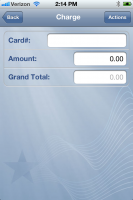
Gift/Loyalty


Reports
Reports will provide real time totals of transactions run within your Mobile Payment App today. Click Report Options to narrow your results by transaction type, card type, report type, and Clerk #.
