Difference between revisions of "CA for QB Setup Wizard"
From KB
| (22 intermediate revisions by the same user not shown) | |||
| Line 1: | Line 1: | ||
| − | + | <gallery widths=200px heights=200px> | |
| − | |||
| − | |||
| − | |||
| − | |||
| − | |||
| − | |||
| − | <gallery widths= | ||
File:QBwizard1.png| [[Payment Application Registration]] | File:QBwizard1.png| [[Payment Application Registration]] | ||
| − | File:QBwizard2.png| | + | File:QBwizard2.png| [[Enter your company information]] |
| − | File:QBwizard3.png| | + | File:QBwizard3.png| [[Choose peripheral printer]] |
| − | File:QBwizard4.png| | + | File:QBwizard4.png| [[Configure Receipt Options]] |
| − | File:QBwizard5.png| | + | File:QBwizard5.png| [[Configure Magnetic Card Reader]] |
| − | File:QBwizard6.png| | + | File:QBwizard6.png| [[Configure pinpad device]] |
| − | File:QBwizard7.png| | + | File:QBwizard7.png| [[Configure signature capture device]] |
| − | File:QBwizard8.png| | + | File:QBwizard8.png| [[QuickBooks Default Information]] |
| − | File:QBwizard9.png| | + | File:QBwizard9.png| [[Configure Transction Options]] |
| − | File:QBwizard10.png| | + | File:QBwizard10.png| [[Configure Email Options]] |
| − | File:QBwizard11.png| | + | File:QBwizard11.png| [http://kb.chargeanywhere.com/index.php/Bill_Presentment_(QB) Bill Presentment] (Only visible if Bill Presentment service active on your gateway account) |
| − | File:QBwizard12.png| | + | File:QBwizard12.png| '''End of Setup Wizard.''' View Tutorial or click Close to begin [http://kb.chargeanywhere.com/index.php/CHARGE_Anywhere_Designed_for_Use_with_QuickBooks#Processing_Transactions Processing Transactions]. |
</gallery> | </gallery> | ||
Latest revision as of 13:13, 12 September 2012
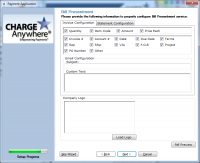
Bill Presentment (Only visible if Bill Presentment service active on your gateway account)
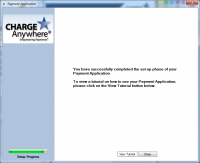
End of Setup Wizard. View Tutorial or click Close to begin Processing Transactions.


