Difference between revisions of "Two-factor Authentication"
| Line 38: | Line 38: | ||
| − | [[File:Duo Setup Part | + | [[File:Duo Setup Part 3.PNG|thumb|left|200px]] |
| − | + | If you choose Mobile Phone or Landline you will be asked to confirm your Phone Number. Enter it in the field provided and then check off the box to confirm the information is correct. Press Continue when you are ready. | |
| − | If | ||
Revision as of 08:12, 1 February 2017
Overview
Two Factor Authentication is a great way to prevent unauthorized usage of your Charge Anywhere account. It will allow you to use a Mobile Phone, Smart Phone, or Tablet as an additional step to verify your identity when you log into the site. Contact your Merchant Service Provider if you would like to enable this feature for your account.
Getting Started

Navigate to https://www.chargeanywhere.com/TransactionManager/Login.aspx and enter the Username and Password provided in your activation emails.

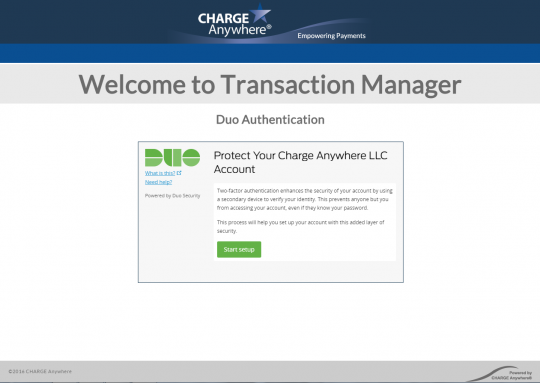
If your Merchant Service Provider has enabled Two Factor Authentication on your account you will see the screen on the left. Click on Start setup
Configuring your Duo Account

You will need to register the type of device you want to use for Two-factor Authentication. Mobile Phone will allow you to receive a security code through a text message, or use the Duo Mobile app to authenticate your login. Choosing a Tablet will allow you to use the Duo Mobile app. Choosing a Landline will allow you to receive a phone call with a security code.

If you choose Mobile Phone or Landline you will be asked to confirm your Phone Number. Enter it in the field provided and then check off the box to confirm the information is correct. Press Continue when you are ready.
