|
|
| (11 intermediate revisions by 2 users not shown) |
| Line 1: |
Line 1: |
| | ==Credit Card== | | ==Credit Card== |
| − | [[File:WebTerminalCredit.bmp|thumb|upright|300px|Web Terminal - Credit Card]] | + | [[File:VirtualTerminal.png|thumb|upright|300px|Web Terminal - Credit Card]] |
| | | | |
| | '''1.''' To process a credit card transaction, click <u>Virtual Terminal</u> from the menu bar at the top of the screen. Then select <u>Web Terminal</u>. | | '''1.''' To process a credit card transaction, click <u>Virtual Terminal</u> from the menu bar at the top of the screen. Then select <u>Web Terminal</u>. |
| Line 16: |
Line 16: |
| | | | |
| | | | |
| − | ==ACH==
| |
| − | [[File:WebTerminalACH.bmp|thumb|upright|300px|Web Terminal - ACH]]
| |
| − |
| |
| − | '''1.''' To process an ACH transaction, click <u>Virtual Terminal</u> from the menu bar at the top of the screen. Then select <u>Web Terminal</u> and click the <u>ACH</u> tab.
| |
| − |
| |
| − | '''2.''' Select the appropriate transaction type, enter all transaction data, and press Process Transaction.
| |
| − |
| |
| − | '''3.''' The response will display on the screen.
| |
| − |
| |
| − | [http://kb.chargeanywhere.com/index.php/ACH_in_Web_Terminal#Field_Descriptions '''Click here for more info on processing ACH transactions''']
| |
| | | | |
| | | | |
| | | | |
| − | | + | ==ACH== |
| − | | + | [[File:WebterminalACH.png|thumb|upright|300px|Web Terminal - ACH]] |
| − | | |
| − | | |
| − | | |
| − | | |
| − | | |
| − | ==Prepaid / Gift Card== | |
| − | [[File:WebTerminalGift.bmp|thumb|upright|300px|Web Terminal - Prepaid/GiftCard]] | |
| | | | |
| | '''1.''' To process an ACH transaction, click <u>Virtual Terminal</u> from the menu bar at the top of the screen. Then select <u>Web Terminal</u> and click the <u>ACH</u> tab. | | '''1.''' To process an ACH transaction, click <u>Virtual Terminal</u> from the menu bar at the top of the screen. Then select <u>Web Terminal</u> and click the <u>ACH</u> tab. |
| Line 45: |
Line 28: |
| | '''3.''' The response will display on the screen. | | '''3.''' The response will display on the screen. |
| | | | |
| − | [http://kb.chargeanywhere.com/index.php/Processing_Gift_Cards_in_Web_Terminal#Field_Descriptions '''Click here for more info on processing Prepaid / Gift Cards in Web Terminal'''] | + | [http://kb.chargeanywhere.com/index.php/ACH_in_Web_Terminal#Field_Descriptions '''Click here for more info on processing ACH transactions'''] |
| − | ==Credit Card==
| |
| | | | |
| − | <span style="color:#FF0000">'''*'''</span>'''Devices:''' Displays the identification of the device that the transaction will be associated with. If you have more than one device on your gateway account, you will need to select a device.
| |
| | | | |
| − | <span style="color:#FF0000">'''*'''</span>'''Transaction Type:''' By default, the transaction type is set to Sale. You have the option for Sale, Return, Force, Retry, and Auth Only.
| |
| | | | |
| − | '''Customer:''' This field will populate the Customer # field in Search Transactions. You can enter a customer name or use the Customer Profile section on the right hand side.
| |
| | | | |
| − | <span style="color:#FF0000">'''*'''</span>'''Card #:''' Enter the full card number (no symbols or spaces)
| |
| | | | |
| − | <span style="color:#FF0000">'''*'''</span>'''Exp Date:''' Enter the expiration date (MMYY; no symbols)
| |
| | | | |
| − | '''Click Here to Swipe Card:''' When selected, a new "Swipe Card Now" screen will appear. You will be able to use a compatible card reader to swipe credit card information. Once swipe is collected, press Ok and the card information will be added to the Web Terminal screen to continue processing.
| |
| | | | |
| − | '''Card Present''' - (Yes/No) Choose yes if the card is physically present.
| |
| | | | |
| − | '''Address''' - Billing address of the credit card. (Numerical values are the qualifier)
| |
| | | | |
| − | '''Zip Code''' - Billing zip code of the credit card.
| |
| | | | |
| − | '''CVV Indicator''' - If you want to enter the CVV, select "Enter CVV" from the dropdown menu. If not, select "Want To Bypass", "Value Illegible" or "Not On Card".
| |
| | | | |
| − | '''CVV''' - (Card Verification Value) 3 digit number on signature panel of Visa, MasterCard, and Discover cards. 4 digit number on the front of American Express cards.
| |
| | | | |
| − | '''Clerk #''' - You may choose to enter a Clerk #. Clerk # can be used to identify which user processed a transaction.
| |
| | | | |
| − | '''Invoice #''' - You may choose to enter an Invoice #. If you have CHARGE Anywhere Designed for Use with QuickBooks on your account, transactions can be imported to create payment records that match up to your invoice in QuickBooks.
| |
| | | | |
| − | <span style="color:#FF0000">'''*'''</span>'''Amount''' - Enter transaction amount.
| |
| | | | |
| − | '''Tax''' - You may choose to enter a tax amount.
| |
| | | | |
| − | '''Subtotal''' - This field is not editable. It will display the combined total of Amount and Tax.
| |
| | | | |
| − | '''Tips''' - You may enter a tip amount.
| |
| | | | |
| − | '''Grand Total''' - This field is not editable. It will display the total of Amount. Tax, and Tips.
| + | ==Prepaid / Gift Card== |
| | + | [[File:WebTerminalGift_1.PNG|thumb|upright|300px|Web Terminal - Prepaid/GiftCard]] |
| | | | |
| − | '''Purchase Card''' - (Level 2 Card) Check this field only if customer states they are using a Level 2 card. A Level 2 card is government or business issued credit card. The customer will need to provide a purchase code. | + | '''1.''' To process an ACH transaction, click <u>Virtual Terminal</u> from the menu bar at the top of the screen. Then select <u>Web Terminal</u> and click the <u>ACH</u> tab. |
| | | | |
| − | '''Tax Exempt?''' - This field is only available if Level 2 card is enabled. Check this field only if customer states that their Level 2 card is tax exempt. | + | '''2.''' Select the appropriate transaction type, enter all transaction data, and press Process Transaction. |
| | | | |
| − | '''Purchase Code''' - This field is only available if Level 2 card is enabled. The customer will need to provide you with their purchase code. | + | '''3.''' The response will display on the screen. |
| | | | |
| − | '''Customer Profiles''' - All customers within your [[Customer Database]] will be displayed in the Customer Profile box. Select a customer to have their payment information populate the Web Terminal screen.
| + | [http://kb.chargeanywhere.com/index.php/Processing_Gift_Cards_in_Web_Terminal#Field_Descriptions '''Click here for more info on processing Prepaid / Gift Cards in Web Terminal'''] |
| − | | |
| − | '''Process Transaction''' - Once all payment information has been entered and verified, click Process Transaction. The transaction response will display and upon approval a reciept screen will appear that you can email or print. Also relevant [[Transaction Responses]]
| |
| − | | |
| − | <span style="color:#FF0000">'''*'''</span>''' Required fields for processing a transaction'''
| |
| − | | |
| − | ==ACH==
| |
| − | | |
| − | <span style="color:#FF0000">'''*'''</span>'''Devices''' - Displays the identification of the device that the transaction will be associated with. If you have more than one device on your gateway account, you will need to select a device.
| |
| − | | |
| − | <span style="color:#FF0000">'''*'''</span>'''Transaction Type''' - Choose Credit, Debit or Void. Credit will initiate a return, Debit will initiate a Sale, and Void will reverse a prior debit or credit processed within the same day.
| |
| − | | |
| − | <span style="color:#FF0000">'''*'''</span>'''Amount''' - Enter the transaction amount.
| |
| − | | |
| − | '''Check #''' - You may enter a check # associated with the transaction.
| |
| − | | |
| − | '''Memo''' - You may include any notes with the transaction.
| |
| − | | |
| − | '''Is recurring?''' - You may prompt the ACH processor to make this transaction recurring. All following transactions will be conducted by your ACH processor.
| |
| − | | |
| − | <span style="color:#FF0000">'''*'''</span>'''Customer Info''' - Choose a customer from your customer profile to populate the customer info.
| |
| − | | |
| − | '''Customer Profile''' - All customers within your [[Customer Database]] will be displayed in the Customer Profile box. Select a customer to have that customer's payment information populate the Customer Info fields.
| |
| − | | |
| − | '''Process Transaction''' - Once all payment information has been entered and verified, click Process Transaction. The transaction response will display at the top of the screen.
| |
| − | | |
| − | <span style="color:#FF0000">'''*'''</span>''' Required fields for processing a transaction.
| |
| − | | |
| − | ==Prepaid/Gift Card==
| |
| − | | |
| − | <span style="color:#FF0000">'''*'''</span>'''Devices''' - Displays the identification of the device that the transaction will be associated with. If you have more than one device on your gateway account, you will need to select a device.
| |
| − | | |
| − | <span style="color:#FF0000">'''*'''</span>'''Transaction Type''' - By default the Transaction Type is set to Charge. You have the option for Charge, Refund, Activate, AddValue, Deactivate, and BalanceInquiry.
| |
| − | | |
| − | '''Customer''' - Select a customer from the dropdown menu. The dropdown menu will populate customers from your [[Customer Database]]
| |
| − | | |
| − | '''Card Numebr''' - Enter the full card number (no symbols or spaces)
| |
| − | | |
| − | '''CVV Indicator''' - (Card Verification Value) 3 digit number on signature panel of Visa, MasterCard, and Discover cards. 4 digit number on the front of American Express cards.
| |
| − | | |
| − | '''CVV''' - (Card Verification Value) 3 digit number on signature panel of Visa, MasterCard, and Discover cards. 4 digit number on the front of American Express cards.
| |
| − | | |
| − | '''Clerk #''' - You may choose to enter a Clerk #. Clerk # can be used to identify which user processed a transaction.
| |
| − | | |
| − | '''Invoice #''' - You may choose to enter an Invoice #.
| |
| − | | |
| − | <span style="color:#FF0000">'''*'''</span>'''Amount''' - Enter transaction amount.
| |
| − | | |
| − | '''Tax''' - You may choose to enter a tax amount.
| |
| − | | |
| − | '''Subtotal''' - This field is not editable. It will display the combined total of Amount and Tax.
| |
| − | | |
| − | '''Grand Total''' - This field is not editable. It will display the total of Amount. Tax, and Tips.
| |
| − | | |
| − | <span style="color:#FF0000">'''*'''</span>''' Required fields for processing a transaction.
| |
Credit Card
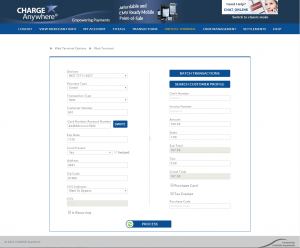
Web Terminal - Credit Card
1. To process a credit card transaction, click Virtual Terminal from the menu bar at the top of the screen. Then select Web Terminal.
2. Select the appropriate transaction type, enter all transaction data, and press Process Transaction.
- To swipe, click the option that reads "Click Here To Swipe Card". A new "Swipe Card Now" screen will appear ready for your swipe. *Optimized for Internet Explorer and Safari browsers.
- If keying card info, do not include dashes, spaces or symbols. Exp Date must be formatted MMYY.
3. The response will display on the screen. If approved, you will be able to print or email the receipt. *Display Receipt must be selected in My Account > Preferences.
Click here for more info on processing Credit Card transactions
ACH
1. To process an ACH transaction, click Virtual Terminal from the menu bar at the top of the screen. Then select Web Terminal and click the ACH tab.
2. Select the appropriate transaction type, enter all transaction data, and press Process Transaction.
3. The response will display on the screen.
Click here for more info on processing ACH transactions
Prepaid / Gift Card
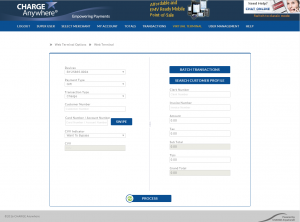
Web Terminal - Prepaid/GiftCard
1. To process an ACH transaction, click Virtual Terminal from the menu bar at the top of the screen. Then select Web Terminal and click the ACH tab.
2. Select the appropriate transaction type, enter all transaction data, and press Process Transaction.
3. The response will display on the screen.
Click here for more info on processing Prepaid / Gift Cards in Web Terminal


