Difference between revisions of "Downloading QuickSale on an iPad"
From KB
| Line 4: | Line 4: | ||
<gallery widths=150px heights=200px perrow=3> | <gallery widths=150px heights=200px perrow=3> | ||
File:Search.PNG| '''1.''' In your app store search for Charge Anywhere and choose Charge Anywhere LLC when prompted | File:Search.PNG| '''1.''' In your app store search for Charge Anywhere and choose Charge Anywhere LLC when prompted | ||
| − | File:Iphone only.PNG| '''2.''' The search will not show the QuickSale application. On the top | + | File:Iphone only.PNG| '''2.''' The search will not show the QuickSale application. On the top left of the screen change the search filter to look for iPhone Only applications |
File:CA appears.PNG| '''3.''' The QuickSale application is now available. Click on Get to download | File:CA appears.PNG| '''3.''' The QuickSale application is now available. Click on Get to download | ||
</gallery> | </gallery> | ||
Latest revision as of 10:53, 21 March 2017
QuickSale for Apple iOS is listed in the App Store as an iPhone application. It works on all versions of the iPad however you will need to change your search filters to only look for iPhone apps in order to download it.
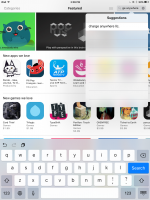
1. In your app store search for Charge Anywhere and choose Charge Anywhere LLC when prompted
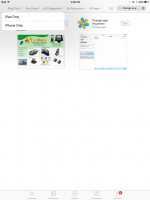
2. The search will not show the QuickSale application. On the top left of the screen change the search filter to look for iPhone Only applications
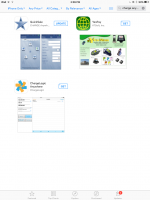
3. The QuickSale application is now available. Click on Get to download


