Difference between revisions of "CHARGE Anywhere Not Displaying"
| Line 26: | Line 26: | ||
| + | '''1.''' Log into Quickbooks as the Admin user. | ||
| + | '''2.''' From the File menu choose the option Switch to Single User Mode | ||
| − | |||
| − | |||
| − | + | If you have any questions or if the above steps did not work, please contact us at 800-211-1256 option 1 for Tech Support | |
Revision as of 08:26, 11 June 2018
If Charge Anywhere is not showing up in your Quickbooks Company Dropdown it means you will need to run the Quickbooks program as a Windows administrator. You can resolve this with the following steps.
1. In order to make sure the Quickbooks application has completely stopped press Ctrl + Alt + Delete on your keyboard.
When presented with a list of options choose "Start Task Manager"
- For Windows 7: click on the Processes tab and look for the Quickbooks process QBW32.exe click on this process and select End Process
- For Windows 8 and Windows 10: look for the Quickbooks process Quickbooks(32bit) click on this process and select End Process
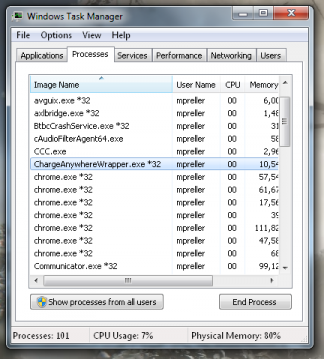
1. Ending the Charge Anywhere Process in Windows 7
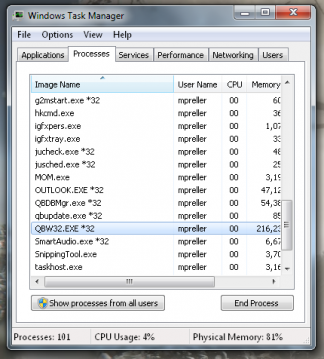
2. Ending the QuickBooks Process in Windows 7


2. With the Quickbooks application closed look for the application in your Task Manager Charge Anywhere Wrapper. Click on this process and select End Process.
3. Right click on your Quickbooks icon and choose the option "Run as Administrator" Log in as the Quickbooks Administrator and you should now see the Charge Anywhere located in your Company drop down menu
Quickbooks 2018 has introduced an issue for Third Party Applications. If you recently upgraded to Quickbooks 2018 you may not see the Charge Anywhere in your company dropdown.
1. Log into Quickbooks as the Admin user.
2. From the File menu choose the option Switch to Single User Mode
If you have any questions or if the above steps did not work, please contact us at 800-211-1256 option 1 for Tech Support
