Difference between revisions of "Intuit Emulation"
From KB
| Line 11: | Line 11: | ||
'''3.''' A sale screen will appear. Verify or enter the payment information and click Send. | '''3.''' A sale screen will appear. Verify or enter the payment information and click Send. | ||
| − | '''4.''' A response dialogue will appear with the results. | + | '''4.''' A response dialogue will appear with the transaction results. |
<gallery widths=200px heights=150px> | <gallery widths=200px heights=150px> | ||
Latest revision as of 10:18, 13 September 2012
CHARGE Anywhere recommends processing sales via QuickSale or Process Payment. However, if you are more comfortable processing through a Receive Payment screen, continue with the process below:
- Ensure that "Automatically request to process payment upon saving Receive Payment/Sales Receipt" is selected in the Trans Options tab of the Setup menu.
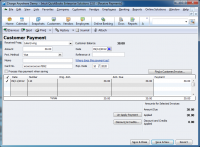
1. Create a receive payment for the customer. Fill in the details of the payment and select any invoice it may be associated with.
- Ensure that the checkbox for "Process [credit card] when saving" is NOT selected. (This will process through Intuit instead)
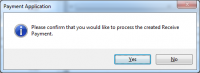
2. Save and Close the recieve payment window. You will receive a pop up from the payment application requesting to "Process Payment for the created
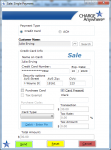
3. A sale screen will appear. Verify or enter the payment information and click Send.
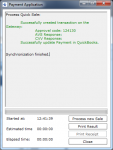
4. A response dialogue will appear with the transaction results.
1. 
2. 
3. 
4.


