Difference between revisions of "Sync Single Customer"
| (One intermediate revision by the same user not shown) | |||
| Line 1: | Line 1: | ||
Syncing a single customer can avoid the sometimes lengthy process of syncing the entire encrypted database. To do so: | Syncing a single customer can avoid the sometimes lengthy process of syncing the entire encrypted database. To do so: | ||
| − | |||
| − | |||
| − | |||
| − | |||
'''1.''' Log into QuickBooks as admin user. Go to Company > CHARGE Anywhere > Setup > Trans Options. Unselect the first option: '''"Automatically synchronize the encrypted database upon adding/modifying QuickBooks Customers"''' and click OK on the setup menu. | '''1.''' Log into QuickBooks as admin user. Go to Company > CHARGE Anywhere > Setup > Trans Options. Unselect the first option: '''"Automatically synchronize the encrypted database upon adding/modifying QuickBooks Customers"''' and click OK on the setup menu. | ||
| Line 16: | Line 12: | ||
*After updating the customer, you may want to reselect '''"Automatically synchronize the encrypted database upon adding/modifying QuickBooks Customers"''' to avoid additional prompts. | *After updating the customer, you may want to reselect '''"Automatically synchronize the encrypted database upon adding/modifying QuickBooks Customers"''' to avoid additional prompts. | ||
| + | |||
| + | <div align="center"> | ||
| + | <gallery widths=250px heights=150px> | ||
| + | File:UpdateCustomerRequest.png| '''3.''' (appears after making customer active) | ||
| + | File:CustomerUpdate.png|'''4.''' (Retype or swipe payment information) | ||
| + | </gallery> | ||
| + | </div> | ||
Latest revision as of 13:03, 17 September 2012
Syncing a single customer can avoid the sometimes lengthy process of syncing the entire encrypted database. To do so:
1. Log into QuickBooks as admin user. Go to Company > CHARGE Anywhere > Setup > Trans Options. Unselect the first option: "Automatically synchronize the encrypted database upon adding/modifying QuickBooks Customers" and click OK on the setup menu.
2. Open up the Customer Center and locate the customer. Right click on the customer and select "Make Cutomer:Job inactive". Then right click on the customer and select "Make Customer:Job active".
3. You will receive a prompt from the payment application asking to update the customer's credit card information. Click Yes.
4. Retype or swipe the customer's payment information into the Customer Update screen and click OK. (Retype the card number even if it appears encrypted in the Customer Update screen.
5. You will receive a prompt that the information has been updated.
- After updating the customer, you may want to reselect "Automatically synchronize the encrypted database upon adding/modifying QuickBooks Customers" to avoid additional prompts.
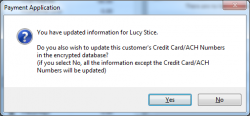
3. (appears after making customer active)
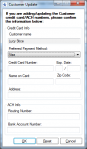
4. (Retype or swipe payment information)


