Difference between revisions of "CA for QB Installation"
| Line 6: | Line 6: | ||
'''3.''' Open the CHARGE Anywhere zip folder and double click the CHARGE Anywhere icon within to begin installation. Follow the prompts. | '''3.''' Open the CHARGE Anywhere zip folder and double click the CHARGE Anywhere icon within to begin installation. Follow the prompts. | ||
| + | |||
<center>'''PREREQUISITES -''' ''The Prerequisite screens will not appear if they are already installed on your computer.''</center> | <center>'''PREREQUISITES -''' ''The Prerequisite screens will not appear if they are already installed on your computer.''</center> | ||
| Line 14: | Line 15: | ||
file:Prereq3.bmp| '''Click Finish''' | file:Prereq3.bmp| '''Click Finish''' | ||
</gallery> | </gallery> | ||
| − | |||
<center>'''PLUG-IN INSTALLER'''</center> | <center>'''PLUG-IN INSTALLER'''</center> | ||
Revision as of 15:15, 29 August 2012
CHARGE Anywhere® Designed for Use with QuickBooks® is intended for use with QuickBooks Financial versions Pro, Premier, and Enterprise 2008 and higher. (If you are utilizing QuickBooks POS, please call CHARGE Anywhere at (800) 211-1256 x 100.) Before starting installation, verify that all QuickBooks users are logged out and QuickBooks is closed.
1. Click here to download your CHARGE Anywhere Designed for Use with QuickBooks software.
2. Read and agree to the CHARGE Anywhere License Agreement, enter your license key and press Submit. (License Key is included in your activation email). Save the file, CHARGE Anywhere.zip, to the desktop of your computer.
3. Open the CHARGE Anywhere zip folder and double click the CHARGE Anywhere icon within to begin installation. Follow the prompts.
- Error creating thumbnail: Image type not supported
Click Next
- Error creating thumbnail: Image type not supported
Click Next (.Net Framework is skipped when your computer already has required version)
- Error creating thumbnail: Image type not supported
Click Finish
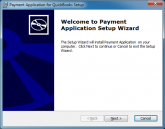
Click Next
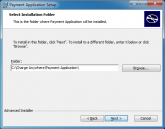
Click Next
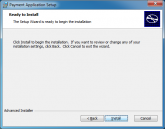
Click Install
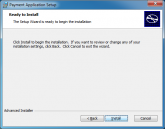
Click Next
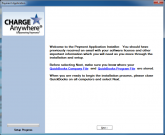
Click Next


