Difference between revisions of "Reinstalling on Same Computer"
| Line 1: | Line 1: | ||
===1. Uninstall=== | ===1. Uninstall=== | ||
| + | Before uninstalling, it is important to know the location of your payment application database so that data is not lost. To find the location, go to Company > CAHRGE Anywhere > Support. The Plug-In Path displays the database location. | ||
| + | |||
'''1a.''' Close QuickBooks. Open a [[task manager]] and click on the Processes tab. Click on ‘Image Name’ to sort alphabetically and look for ‘ChargeAnywhereWrapper.exe’ and ‘QBW32.exe’. | '''1a.''' Close QuickBooks. Open a [[task manager]] and click on the Processes tab. Click on ‘Image Name’ to sort alphabetically and look for ‘ChargeAnywhereWrapper.exe’ and ‘QBW32.exe’. | ||
*''If either process was found, highlight and click end process.'' | *''If either process was found, highlight and click end process.'' | ||
| Line 33: | Line 35: | ||
<center>'''Configure the location of the payment application database.'''</center> | <center>'''Configure the location of the payment application database.'''</center> | ||
| − | |||
| − | |||
| − | |||
| − | |||
| − | |||
| − | |||
| − | |||
| − | |||
<gallery widths=288px heights=150px> | <gallery widths=288px heights=150px> | ||
| + | File:AdditionalComputers.png|'''Select Yes and browse to the location of payment application database (db4.mdb)''' | ||
file:QBinstall7.png| '''Click Finish''' | file:QBinstall7.png| '''Click Finish''' | ||
file:QBinstall8.png| '''Click Finish.''' The plug in now installed. Open QuickBooks and continue Setup. [http://kb.chargeanywhere.com/index.php/Application_Certificate Click here for more info].</gallery> | file:QBinstall8.png| '''Click Finish.''' The plug in now installed. Open QuickBooks and continue Setup. [http://kb.chargeanywhere.com/index.php/Application_Certificate Click here for more info].</gallery> | ||
</div> | </div> | ||
Revision as of 08:25, 18 September 2012
1. Uninstall
Before uninstalling, it is important to know the location of your payment application database so that data is not lost. To find the location, go to Company > CAHRGE Anywhere > Support. The Plug-In Path displays the database location.
1a. Close QuickBooks. Open a task manager and click on the Processes tab. Click on ‘Image Name’ to sort alphabetically and look for ‘ChargeAnywhereWrapper.exe’ and ‘QBW32.exe’.
- If either process was found, highlight and click end process.
1b. Open your control panel. Uninstall Payment Application first. Then uninstall QBFC8.0.
2. Reinstall
2a. Click here to download your CHARGE Anywhere Designed for Use with QuickBooks software. (If you have the originally downloaded CHARGEAnywhere.zip, you can skip to step 2c.)
2b. Read and agree to the CHARGE Anywhere License Agreement, enter your license key and press Submit. (License Key is included in your activation email). Save the file, CHARGE Anywhere.zip, to the desktop of your computer.
2c. Open the CHARGE Anywhere zip folder and double click the CHARGE Anywhere icon within to begin installation. Follow the prompts.
- Error creating thumbnail: Image type not supported
Click Next
- Error creating thumbnail: Image type not supported
Click Next (.Net Framework is skipped when your computer already has required version)
- Error creating thumbnail: Image type not supported
Click Finish
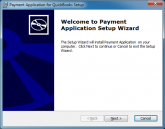
Click Next
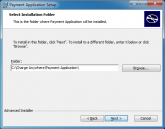
Click Next
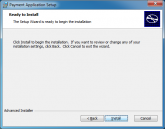
Click Install
Click Next
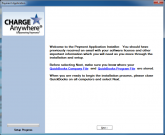
Click Next


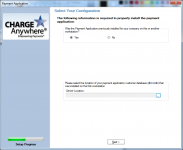
Select Yes and browse to the location of payment application database (db4.mdb)
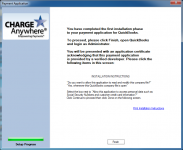
Click Finish
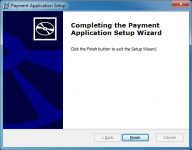
Click Finish. The plug in now installed. Open QuickBooks and continue Setup. Click here for more info.


