Difference between revisions of "Mobile Payment App"
(→Getting Started) |
(→Demos & FAQ) |
||
| Line 188: | Line 188: | ||
'''Q: What kind of customer support does CHARGE Anywhere Mobile Payment App offer?''' | '''Q: What kind of customer support does CHARGE Anywhere Mobile Payment App offer?''' | ||
| − | '''A:''' CHARGE Anywhere Customer Support and Technical Support are available Monday through Friday from 9am to | + | '''A:''' CHARGE Anywhere Customer Support and Technical Support are available Monday through Friday from 9am to 7pm ET. |
Revision as of 10:09, 26 June 2014
Overview
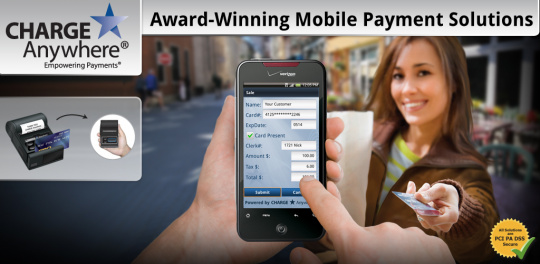
CHARGE Anywhere®'s Mobile Payment App is the industry's most complete mobile payment solution. CHARGE Anywhere's award winning Mobile Payment Solution gives merchants the ability to process transactions securely from their smartphone or tablet. The app offers the ability to accept multiple tender types: Credit Card, Cash, Check, Gift/loyalty, and ACH/eCheck. Included with the solution is our PA DSS Payment Gateway, ComsGate Transaction Manager and a Free Virtual Terminal. (The mobile payment app has the same basic functionality on all operating systems with a few minor differences. This page will display instructions and screenshots for Android.)
Available for: Android, Apple iOS, BlackBerry, J2ME, and Windows Mobile operating systems
System Requirements: Internet Connectivity is required to transmit transaction data.
Android: OS 2.0 or higher
Apple iOS: OS 3.1 or higher
BlackBerry: OS 4.5 or higher
J2ME: CLDC 1.1 and MIDP 2.0
Windows Mobile: OS 5.0-6.5
Supported Peripherals: See Peripheral Help
Features: Free Online Transaction Manager & Virtual Terminal, Electronic Signature Capture, Record of transaction location (GPS), Offline Mode (Store and Forward), AVS & CVV2, Level 1 & Level 2 Purchase Cards, Optional Prompts (tips, clerk#, tax%, customer#)
Add On Features: Bill Presentment; Recurring Database
A Credit Card Merchant Account and ACH Merchant Account is required to process credit card payments and ACH transactions respectively. CHARGE Anywhere does not provide Merchant Accounts but is compatible with all major Payment Processors in the US & Canada.
Getting Started

1. Download the CHARGE Anywhere Payment App from the Google Play Store.
- Click the following link to obtain the download: https://www.chargeanywhere.com/Downloads/android.html
- or go to the Play Store from your phone/tablet and search for CHARGE Anywhere.
2. Enter the Software License Key and Phone Number.
- Software License Key and Phone Number are provided in your CHARGE Anywhere Welcome Email or Text Message.
3. Create a password and sign in with the default username, Admin
4. To configure a peripheral card reader and/or printer, see Peripheral Help.
Swipe Card for QuickSale
If you have a card reader configured, a QuickSale (credit card sale) can be initiated from the home screen by swiping a credit card. For help setting up card reader, see Peripheral Help. The images below outline the process of a QuickSale.
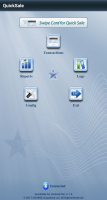
1. Swipe Card

2. Enter amount and click Submit
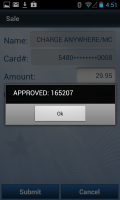
3. The response will display and/or print
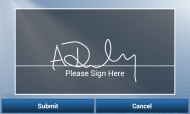
4. Customer signs screen and presses Submit


Transactions
The Transactions menu will display a list of tender types: Cash, Check, Credit, Gift/Loyalty, and ACH/eCheck.


Reports

Reports will provide real time totals of transactions run within your Mobile Payment App during the current day. There are a few options to narrow the results of your report.
- Tender Types Filter: ACH, Cash, Check, Credit, Gift/Loyalty. You may also filter your credit card search by card type.
- Detail Level: Short will display the transactions that make up the total; Full includes the timestamp of each transaction.
- Clerk# Filter: View totals run by a specific user by entering the user's clerk #.
Logs


The Logs hold lists of transactions previously entered into the app and provides additional functions for that transaction, such as Reprint Receipt. (Screenshots to the right outline the process or reprinting or voiding a transaction)
Displays approved transactions run within the current day. Click a transaction to view the transaction details.
- Void - While viewing a transaction's details, click the Menu button for the option to void.
- Reprint Receipt - While viewing a transaction's details, click the Menu button for options to print Merchant Copy or Customer Copy. A printer must be connected in order for this option to appear.
There are three archives. After every day, transactions are transferred from Current Day Logs to Archive 1, then Archive 2, then Archive 3, and finally removed from the app's memory. Any transaction record after this will need to be accessed via the online Transaction Manager. Click a transaction within the Archives to view the transaction details.
When transactions are entered into the Mobile Payment App while in an Offline Mode, those transactions are stored within this log. Click any transaction to view the transaction details. When Offline Mode has been disabled, you have the ability to send those transactions for live approval.
- Send All - If Offline Mode has been disabled, click the Menu button for an option to Send All. The app will send all Offline Transactions and display the number approved, declined, and failed. If the transaction failed to transmit it will be stored in Failed Offline Transactions.
- Void or Send Individual Transaction - While viewing the transaction details, click the Menu button for options to Void or Send Transaction. Void will remove the transaction from Offline logs so that it cannot be uploaded for approval. Send Transaction will only be visible if Offline Mode has been disabled.
Stores transactions that failed to upload from Offline Transactions Log. Ensure that Offline Mode is disabled and that you have sufficient data coverage before attempting to resend. Click the Menu button for the option to 'Resend Failed'.
All Auth Only transactions that were processed through the Mobile Payment App will be located within this log. Click a transaction to view the transaction details.
- Capture All (Force) - Click the Menu button for an option to Capture All. The app will send all Auth Only transactions and display the number approved, declined, and failed.
- Capture Transaction or Delete Transaction - While viewing the transaction details, click the Menu button for options to Capture Transaction or Delete Transaction.
Config
Config will display a list of menu options: Feature Options, Setup, Security, Support, and Maintenance.


Demos & FAQ
Demos - Click link to view demo videos
Q: Is CHARGE Anywhere Mobile Payment App PCI compliant?
A: Yes. All of CHARGE Anywhere payment applications are driven by our Level 1 PCI validated payment gateway, ComsGate. We maintain the highest levels of PCI standards and best practices to ensure cardholder data is kept safe from misuse and identify theft. Utilizing the services of AmbironTrustWave, the industry leader in CISP/PCI compliance, CHARGE Anywhere undergoes a continuous, rigorous audit process to confirm that our products and services are compliant with the latest Card Association regulations.
Q: Can CHARGE Anywhere work with my processor?
A: Yes. CHARGE Anywhere Mobile Payment App can work with any major processor in the US and Canada. Visit our corporate site for a complete list of processors that are compatible CHARGE Anywhere Mobile Payment App.
http://www.chargeanywhere.com/Site/Solutions/IndustryPartnerandCertifications.htm
Q: What are the costs associated with CHARGE Anywhere Mobile Payment App?
A: All fees are designated by your merchant service provider. Please contact your merchant service provider for a price quote.
Q: Do I have to turn off my old payment processing software before using CHARGE Anywhere Mobile Payment App?
A: No, CHARGE Anywhere Mobile Payment App does not interfere with any other processing software you are currently using. However, if you are utilizing a card reader, it may not be able to work properly in two different software simultaneously.
Q: How do I batch my transactions?
A: CHARGE Anywhere is a host capture gateway. All approved transactions are automatically batched by CHARGE Anywhere and sent to your processor for funding. There is nothing you will need to do to initiate the batch.
Q: How do I change my automated batch time?
A: You can contact your merchant service provider or CHARGE Anywhere Customer Support to change your batch time. Batches can be set to automatically close on any hour of the day.
Q: What peripherals can I use with CHARGE Anywhere Mobile Payment App? (card readers and printers)
A: For a complete list of peripherals, see Peripheral Help.
Q: Are my transactions accessible online?
A: Yes. All transactions are stored in the online Transaction Manager for 48 months. After 48 months, all records are archived and can be retrieved upon request.
Q: What kind of customer support does CHARGE Anywhere Mobile Payment App offer?
A: CHARGE Anywhere Customer Support and Technical Support are available Monday through Friday from 9am to 7pm ET.
