Difference between revisions of "QSW Installation"
| Line 1: | Line 1: | ||
'''Thank you for purchasing QuickSale™ for Windows®. We are looking forward to serving your enterprise with our award-winning, PCI-secure payment solutions. Please follow the step-by-step instructions below to install your QuickSale for Windows software.''' | '''Thank you for purchasing QuickSale™ for Windows®. We are looking forward to serving your enterprise with our award-winning, PCI-secure payment solutions. Please follow the step-by-step instructions below to install your QuickSale for Windows software.''' | ||
| − | [http://http://kb.chargeanywhere.com/img_auth.php/b/ba/QS_Download_and_install.mp4 '''Installation Instructions'''] | + | [http://http://kb.chargeanywhere.com/img_auth.php/b/ba/QS_Download_and_install.mp4 '''Installation Instructions'''] Click link to download a video guide of the below instructions |
'''1.''' Click the following link to download QuickSale for Windows: | '''1.''' Click the following link to download QuickSale for Windows: | ||
Revision as of 12:48, 24 November 2015
Thank you for purchasing QuickSale™ for Windows®. We are looking forward to serving your enterprise with our award-winning, PCI-secure payment solutions. Please follow the step-by-step instructions below to install your QuickSale for Windows software.
Installation Instructions Click link to download a video guide of the below instructions
1. Click the following link to download QuickSale for Windows:
https://www.chargeanywhere.com/chargeanywheremanager/download_index.asp?Product=WindowsDesktop
2. After reading and agreeing to the terms and conditions of the CHARGE Anywhere License Agreement, enter your license key in the space provided and press Submit. (License Key is included in your activation email.)
3. Save the file, QuickSale for Windows, to the desktop of your computer. Double click the QuickSale for Windows icon to begin installation.

Click Next.

Click Next or Choose the folder for the Plug-in and the Server.

Click Install.

You have installed QuickSale for Windows. Click Finish.


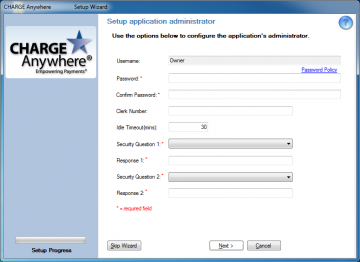
4. When installation completes, double click the QuickSale for Windows software icon which will reside on your desktop as well. This will launch the QuickSale for Windows Setup Wizard. Follow the prompts to complete and begin processing transactions.

Double click QuickSale for Windows Icon to initiate the Setup Wizard.
See QSW Setup Wizard


