Difference between revisions of "Unimag Reader Doesn't Connect"
| Line 14: | Line 14: | ||
File:Unimag Install.png| '''2. Download and Install the ID Tech UniMag Demo''' | File:Unimag Install.png| '''2. Download and Install the ID Tech UniMag Demo''' | ||
File:Unimag Select.png| '''3. Connect the reader and launch the application. When the screen comes up to select a reader choose UnimagII''' | File:Unimag Select.png| '''3. Connect the reader and launch the application. When the screen comes up to select a reader choose UnimagII''' | ||
| − | File:Unimag_Swipe. | + | File:Unimag_Swipe.png| '''4. Press the Swipe Card button and swipe a card through the reader''' |
| − | File:Unimag_Trackdata. | + | File:Unimag_Trackdata.png| '''5. If the card is read successfully the card information will be printed on the screen ''' |
</gallery> | </gallery> | ||
Revision as of 11:51, 15 March 2017

This message will appear if the Unimag Audio Jack Reader is not compatible with your Android device or if there is a problem making a connection.
First you will need to make sure the Android device you are using is on the manufacturers Compatibility List When looking up your device please choose the Unimag II option from the tabs
The model needs to be listed and it must be running a firmware at or below what is listed on the site. If you are running Android firmware higher than what is listed the device may not be able to work
If your device meets the requirements on the compatibility list you can use the following steps to troubleshoot the connection
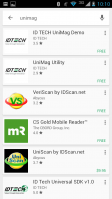
1. In your app store search for Unimag
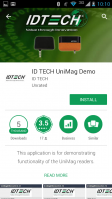
2. Download and Install the ID Tech UniMag Demo
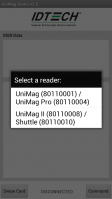
3. Connect the reader and launch the application. When the screen comes up to select a reader choose UnimagII
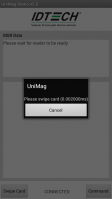
4. Press the Swipe Card button and swipe a card through the reader
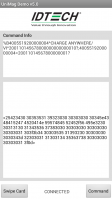
5. If the card is read successfully the card information will be printed on the screen


