Difference between revisions of "Charge Anywhere has stopped responding"
| Line 28: | Line 28: | ||
<div align="center">[[File:Control Panel.PNG|500px]]</div> | <div align="center">[[File:Control Panel.PNG|500px]]</div> | ||
| + | |||
| + | '''5.''' Once the application has been uninstalled you can follow the instructions here to get the newest software release installed. http://kb.chargeanywhere.com/index.php/QS_for_QB_Installation | ||
Revision as of 13:01, 7 March 2017
If you have noticed the you get a message saying Charge Anywhere has stopped responding popping up repeatedly as you perform actions in QuickBooks it may be that there is a corruption in your application. In order to correct the problem you will need to uninstall the application and reinstall the newest release.
Uninstalling the application can be accomplished by performing the following steps.
1. In order to make sure the Quickbooks application has completely stopped press Ctrl + Alt + Delete on your keyboard. When presented with a list of options choose "Start Task Manager"
- For Windows 7: click on the Processes tab and look for the Quickbooks process QBW32.exe click on this process and select End Process
- For Windows 8 and Windows 10: look for the Quickbooks process Quickbooks(32bit) click on this process and select End Process
2. With the Quickbooks application closed look for the application in your Task Manager Charge Anywhere Wrapper. Click on this process and select End Process.
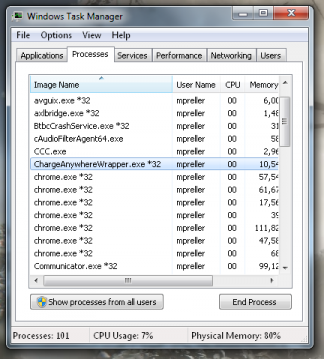
1. Ending the Charge Anywhere Process in Windows 7
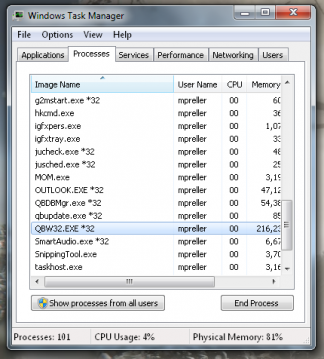
2. Ending the QuickBooks Process in Windows 7


3. Go into your Windows Control Panel. In the control panel look for Programs and Features.
4. This will display a list of your installed applications. Look for the one listed Payment Application Right click on this and choose Uninstall

5. Once the application has been uninstalled you can follow the instructions here to get the newest software release installed. http://kb.chargeanywhere.com/index.php/QS_for_QB_Installation
