Difference between revisions of "Auto Config"
| Line 1: | Line 1: | ||
| − | ''Auto Configure Devices'' will search the computer for any compatible peripheral connected to the computer and configure them to work with | + | ''Auto Configure Devices'' will search the computer for any compatible peripheral connected to the computer and configure them to work with QuickSale for Windows. Before you run the auto config, please make sure that all peripherals you wish to use are connected to the computer. |
Revision as of 11:16, 20 July 2012
Auto Configure Devices will search the computer for any compatible peripheral connected to the computer and configure them to work with QuickSale for Windows. Before you run the auto config, please make sure that all peripherals you wish to use are connected to the computer.
Please note:
- USB cardreaders must be HID formatted. See Peripheral Help
- Pinpads must be serial connected with appropriate drivers already installed. See Peripheral Help
Once you initiate the auto config, you will see a screen for processing. (This may take several minutes to scan your computer) Once scan is complete, verify the peripherals that were found. If more than one peripheral of the samy type is found, you will need to select the one you wish to use from the dropdown menus.
*If auto config did not find a device that is connected to the computer, try to manually configure the device or see Peripheral Help.
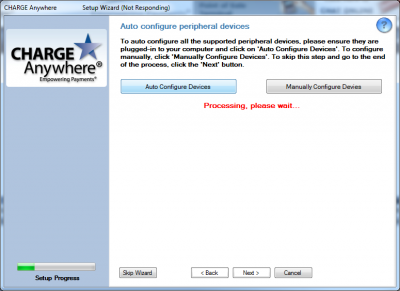
Processing, please wait...
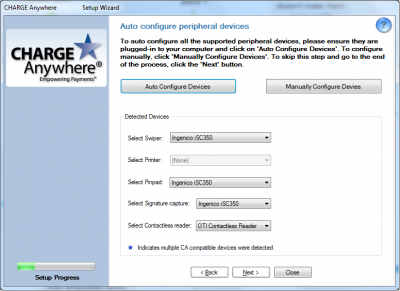
Once complete, it will configure all devices found


