Quicksale POS-QSR
Contents |

Quicksale & Miura M010 Wireless EMV video
Setup Guide - Click link to download a video guide to configuring the QuickSale POS-QSR Online Portal
QuickSale Cash Register POS-QSR is a dynamic cloud-based cash register and retail management system that provides the latest in point-of-sale functionality and business management tools.
Our cutting-edge features are designed to give business owners a competitive advantage, and our tablet application, powered by the cloud-based back end that is multi-user and multi-location friendly, allows for convenient management from anywhere with internet connectivity.
System Requirements: Android OS 6.0 or higher; Internet Connectivity is required to transmit transaction data.
Supported Peripherals: See Peripheral Help
Features: Free Online Transaction Manager & Virtual Terminal, Electronic Signature Capture, Record of transaction location (GPS), AVS & CVV2, Level 1 & Level 2 Purchase Cards, Optional Prompts (tips, clerk#, tax%, customer#)
A Credit Card Merchant Account and ACH Merchant Account is required to process credit card payments and ACH transactions respectively. CHARGE Anywhere does not provide Merchant Accounts but is compatible with all major Payment Processors in the US & Canada.
Getting Started

1. Download the QuickSale™ Cash Register for Android app from the Google Play Store.
- Click the following link to obtain the download: https://play.google.com/store/apps/details?id=com.chargeanywhere.cashregister
- or go to the Play Store from your phone/tablet and search for CHARGE Anywhere Cash Register.
- Current Release version 1.5.0.27
2. Enter the Software License Key and Phone Number.
- Software License Key and Phone Number are provided in your CHARGE Anywhere Welcome Email or Text Message.
3. Sign in with the username and password that were created in the Cash Register Portal.
4. To configure a peripheral card reader and/or printer, see Peripheral Help.
Process Sale
Enter the items that will be sold in the transaction. The total sale amount will be displayed in the Total section above the Sale Item window. The Subtotal section at the bottom will show the breakdown of the sale, included Taxes, and deductions from Discounts.

You can tap on Exact Change button to complete a cash transaction for the exact total amount.
Press the Payment button when you are ready to collect payment and select one of the following options:
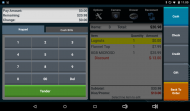
1. For a cash payment press the cash button on the right hand side. You can manually type in the amount or press the Tender button to enter the full amount
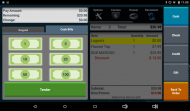
2. You can also use the Cash Bills option to enter the amount
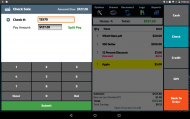
3. For a check payment press the check button on the right hand side. Here you can enter in the amount and check number
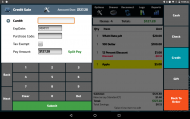
4. For a credit payment press the credit button and then manually enter the card number or swipe/insert the card into your card reader.


After the order is completed you will be prompted to:
- Signature capture: After an approved credit card sale, the customer will be prompted to sign on the screen (Signature capture must be enable in the portal)
- Print receipt: If you have a receipt printer connected, receipt will automatically print (Print receipts options are configured in the portal)
- Email receipt: You will be prompted to enter the customer’s email address (Email Customer Receipt must be enabled in the Portal).
