Magtek SureSwipe
Contents
Specifications & Requirements

Specifications:
Dimensions: 3.94" x 1.28" x 1.23"
Weight: 4.4 oz
Warranty: 1 year
Max Track: 3 Track
Operating Life: 1,000,000 swipes
Operating Temp: -40°F - 158°F
Storage Temp: -40°F - 158°F
Requirements:
CHARGE Anywhere Designed for Use with QuickBooks: HID format
QuickSale for Windows: HID format
Web Terminal:
- Standard Card Reader - Keyboard format
- Advanced Peripheral - HID format
Download the Magtek SureSwipe reprogramming software to switch between HID and Keyboard formats (See instructions below) - http://uploads.chargeanywhere.com/pub/mwirth/USB-HID_Switch_Program_99510026.zip
Configuration Guides
CHARGE Anywhere Designed for Use with QuickBooks
1. Ensure that the device is HID formatted. See Format Conversion section below.
2. Log into the QuickBooks company file as admin and go to Company > CHARGE Anywhere > Setup > Print Options. Click Peripheral Devices.
3. Use the dropdown menu under Card Swiper Configuration to select your device. (Do not select a Com Port; do not enable bluetooth)
4. Click Save on the Peripheral Device Configuration screen and click OK in the setup menu.
QuickSale for Windows
1. Ensure that the device is HID formatted. See Format Conversion section below.
2. Sign into the software and right click the CHARGE Anywhere icon in the notification section of your desktop. Select Setup.
3. Click on the Print Options tab and click Peripheral Devices. A Peripheral Device Configuration screen will appear.
4. Use the dropdown menu under Card Swiper Configuration to select your device. (Do not select a Com Port; do not enable bluetooth)
5. Click Save on the Peripheral Device Configuration screen and click OK in the setup menu.
Web Terminal
Standard Card Reader

As long as your USB device is in Keyboard format (see Format Conversion below), there is no configuration needed in Transaction Manager.
To use a standard card reader in Web Terminal:
1. Log in using Internet Explorer or Safari browser. Click on Virtual Terminal along the top menu bar. Click Web Terminal.
2. Click the button that states: Click Here to Swipe Card.
3. A new "Swipe Card Now" screen will appear with blank fields for Name, Card #, and Exp Date. Swipe Card and the information from the card will populate these fields.
4. Click Ok and the information will be added to the previous Web Terminal screen.
Advanced Peripherals
*Advanced Peripherals will operate in Internet Explorer only. Card Reader must be HID formatted.
1. Download and run the CHARGE Anywhere Peripherals Module file.
2. Once installed, log into the online Transaction Manager. Go to Configure Devices > CHARGE Anywhere Peripheral Device Setup.
3. Select Advance Peripherals and click Configure.
4. Use the drop menu under Card Swiper Configuration to select your device. (Do not select a Com Port; do not enable bluetooth) Click Save.
Format Conversion (HID/Keyboard)
1. Plug the Magtek SureSwipe cardreader into an available USB port and download the Magtek reprogramming software to switch between HID and Keyboard formats - http://uploads.chargeanywhere.com/pub/mwirth/USB-HID_Switch_Program_99510026.zip
2. Extract the contents of the downloaded zip folder, HID_Switch_Program_99510026.zip. (Open the zip folder and drag Disk1 folder to your desktop)
3. Open the Disk 1 folder and double click the USBMSR application listed second to last in the folder. (DO NOT REMOVE ANY FILES FROM THE DISK1 FOLDER)
4. The USB MSR Demo screen will appear and display the current format of the card reader. Choose Send Commands tab.
5. Click Load File, select Change To HID or Change To Keyboard and click Open. You will see the path to the file appear in the Send Commands screen. Click Download; A 5 second countdown will begin followed by finished downloading. (See screenshots below)
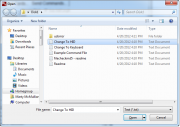
Choose Change to HID or Change to Keyboard 
Finished Downloading


6. To test if the switch has taken place, go back to the Read Cards tab and swipe a card. See below for a view of how a swipe would look in each format.

HID view 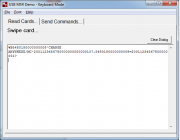
Keyboard view


*If you selected the swiper in the payment application prior to converting the format, you may have to unselect and reselect the device in the Peripheral Devices screen. You may also have to disconnect and reconnect the device.

