Difference between revisions of "CAFW Setup Wizard"
From KB
(Created page with "''The CHARGE Anywhere for Windows Setup Wizard'' will appear after launching the program for the first time after installation. The Setup Wizard will walk you step by step throug...") |
|||
| Line 22: | Line 22: | ||
File:CAFWwizard7.png| '''Configure Receipt Options and Click Next''' | File:CAFWwizard7.png| '''Configure Receipt Options and Click Next''' | ||
File:CAFWwizard8.png| [[Configure Transaction Options]] and Click Next | File:CAFWwizard8.png| [[Configure Transaction Options]] and Click Next | ||
| − | File:CAFWwizard9.png| '''End of Setup Wizard. Click Launch to begin using the software''' | + | File:CAFWwizard9.png| '''End of Setup Wizard. [http://kb.chargeanywhere.com/index.php/CAFW_Log_In Click Launch to begin using the software.]''' |
</gallery></center> | </gallery></center> | ||
Latest revision as of 10:50, 21 May 2012
The CHARGE Anywhere for Windows Setup Wizard will appear after launching the program for the first time after installation. The Setup Wizard will walk you step by step through the Setup menu. Click the link below an image for help with that screen.
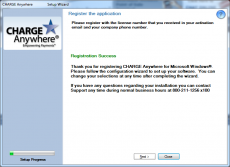
Click Next


Choose Auto Config, Manual Config or Click Next to skip

Choose a Windows Printer and click Next (Displays all printers recognized by Windows)


Configure Receipt Options and Click Next

Configure Transaction Options and Click Next
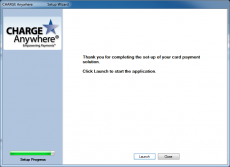
End of Setup Wizard. Click Launch to begin using the software.


