Difference between revisions of "CA for QB Setup Wizard"
(→Setup Wizard) |
|||
| Line 13: | Line 13: | ||
File:QBwizard5.png| [[Configure Magnetic Card Reader]] | File:QBwizard5.png| [[Configure Magnetic Card Reader]] | ||
File:QBwizard6.png| [[Configure pinpad device]] | File:QBwizard6.png| [[Configure pinpad device]] | ||
| − | File:QBwizard7.png| [[Configure | + | File:QBwizard7.png| [[Configure signature capture device]] |
File:QBwizard8.png| [[QuickBooks Default Information]] | File:QBwizard8.png| [[QuickBooks Default Information]] | ||
File:QBwizard9.png| [[Configure Transction Options]] | File:QBwizard9.png| [[Configure Transction Options]] | ||
Revision as of 12:30, 30 August 2012

Application Certificate
After installation completes, log into your QuickBooks company file as the admin user. If this is the first computer to be installed, a certificate will appear requesting to give CHARGE Anywhere access to your company file. Select the options that read, Yes, whenever this QuickBooks file is open" and "Allow this application to access personal data such as Social Security Numbers and customer credit card information." Click Continue and then click Done on the confirmation screen.
Setup Wizard
The Setup Wizard will ask you a series of questions in order to operate in your company file. Click the link below a sreen for more information.
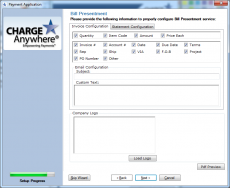
Bill Presentment (Only visible if Bill Presentment service active on your gateway account
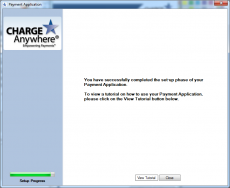
End of Setup Wizard. View Tutorial or click Close to begin Processing Transactions.


