Batch Transactions
Batch Transactions may be used to process multiple credit card transactions by uploading a CSV file or comma delimited text file with transaction data.
Import Setup - Select the order of the transaction data listed within your file. (Amount, Card # and ExpDate are required fields)
Comsgate Batch Specs - media:Comsgate Batch Specs.pdf
1. To process batch transactions, go to Virtual Terminal > Batch Transactions.
2. Click Import Setup and configure it to match the transaction data listed in your file.
3. Browse for your file and click "Click to Upload".
4. Verify that all information was imported correctly. (If you have multiple devices with CHARGE Anywhere, select which device you want the transactions to be associated with using the dropdown menu.)
5. Click "Process Batch". (Wait a few moments for all transactions to be processed and once processed, you will see a listing of the results of each transaction.)

Sample Batch File w/ Transaction Data
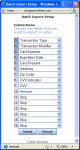
Import Setup (step 2)
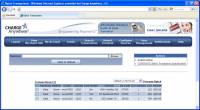
Imported Transaction (step 4)
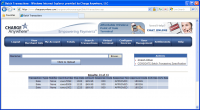
Transaction Responses


