Difference between revisions of "Add Recurring Payment"
From KB
| (8 intermediate revisions by 3 users not shown) | |||
| Line 1: | Line 1: | ||
| − | + | '''To add a recurring payment:''' | |
| − | '''1.''' | + | '''1.''' Go to Virtual Terminal > Recurring Database > Add Recurring Payment. Fill out the appropriate fields. |
| − | *''' | + | *'''Devices''': Select a terminal to associate the recurring transaction with |
| − | *''' | + | *'''Customer''': Enter a customer name or select a customer from your Customer Profiles section on the right hand side. Customer Profiles list all customers in your [[Customer Database]]. |
| + | |||
| + | *'''Payment Type''': Select from Credit Card and/or Bank Account | ||
| + | |||
| + | *'''Payment Profile''': If customer exist already in Customer Database, Payment Profile will display the available cards to associate the recurring with | ||
| − | *''' | + | *'''Plan Type''': Select from Recurring and/or Installment |
| − | *''' | + | *'''Amount Per Recurring/Total amount for Installment''': Enter transaction amount that will be processed on each recurring payment. If installment is selected then enter the total amount. |
| − | *''' | + | *'''Frequency''': Choose how often payments will be processed. (Daily, Weekly, Biweekly, Monthly, Annually, Quarterly, Semiannually) |
| − | *''' | + | *'''Number Of Payments''': Enter the amount of payments/Installments. Note that recurring offers the option for Unlimited number of payments while Installments does not. |
| − | *''' | + | *'''Start Date''': Select the date when the first transaction will be processed. (Effective Date cannot be today) |
| − | *''' | + | *'''End Date''': Select last payment for recurring or installment |
| − | *''' | + | *'''Amount Per Installment''':If installment is selected enter the amount per installment |
| − | *''' | + | *'''Invoice/Reference Number''': You may choose to enter an invoice #. This field is used as a reminder of why you added the recurring payment. |
| − | + | '''2.''' Click Add. | |
| − | + | The recurring payment/Installment will be stored within your Recurring Database. | |
| + | <div align="center"> | ||
| + | <gallery widths=200px heights=400px> | ||
| + | File:RecurringPaymentAdded.png| '''.''' Recurring Payment Added | ||
| + | File:Recurring.PNG| '''2.''' Add Recurring Payment | ||
| − | + | </gallery> | |
| + | </div> | ||
Latest revision as of 14:41, 3 September 2020
To add a recurring payment:
1. Go to Virtual Terminal > Recurring Database > Add Recurring Payment. Fill out the appropriate fields.
- Devices: Select a terminal to associate the recurring transaction with
- Customer: Enter a customer name or select a customer from your Customer Profiles section on the right hand side. Customer Profiles list all customers in your Customer Database.
- Payment Type: Select from Credit Card and/or Bank Account
- Payment Profile: If customer exist already in Customer Database, Payment Profile will display the available cards to associate the recurring with
- Plan Type: Select from Recurring and/or Installment
- Amount Per Recurring/Total amount for Installment: Enter transaction amount that will be processed on each recurring payment. If installment is selected then enter the total amount.
- Frequency: Choose how often payments will be processed. (Daily, Weekly, Biweekly, Monthly, Annually, Quarterly, Semiannually)
- Number Of Payments: Enter the amount of payments/Installments. Note that recurring offers the option for Unlimited number of payments while Installments does not.
- Start Date: Select the date when the first transaction will be processed. (Effective Date cannot be today)
- End Date: Select last payment for recurring or installment
- Amount Per Installment:If installment is selected enter the amount per installment
- Invoice/Reference Number: You may choose to enter an invoice #. This field is used as a reminder of why you added the recurring payment.
2. Click Add.
The recurring payment/Installment will be stored within your Recurring Database.
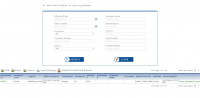
. Recurring Payment Added
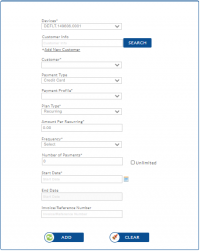
2. Add Recurring Payment


