CHARGE Anywhere Designed for Use with QuickBooks
Overview
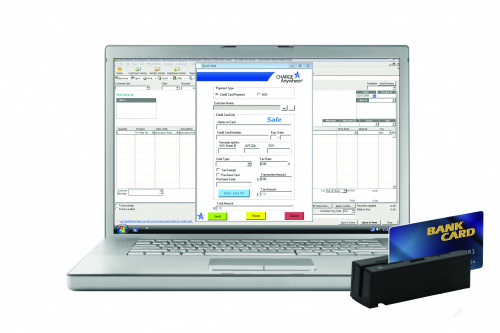
CHARGE Anywhere Designed for Use with QuickBooks is an integrated payment app for QuickBooks Financial versions Pro, Premier, and Enterprise 2008 and higher. Once installed, CHARGE Anywhere will reside within the Company Menu of your QuickBooks Company File and offers a variety of ways to process and maintain your payments.
System Requirements: Windows XP (minimum); Microsoft .Net Franework 2.0 (minimum)
Supported Peripherals: Peripheral Help
Features: Free Online Transaction Manager & Virtual Terminal, Recurring Database, Import Transactions, AVS & CVV2, Clerk # & Invoice #, Level 1 and Level 2 Purchase Cards
Add on Features: Bill Presentment; Signature Capture Hosting
*A Credit Card Merchant Account is required to process credit card payments. CHARGE Anywhere does not provide Merchant Accounts but is compatible with all major Payment Processors in the US & Canada.
Getting Started
CA for QB Installation - Download and install CHARGE Anywhere for QuickBooks
Application Certificate - Grant CHARGE Anywhere permission to QuickBooks
CA for QB Setup Wizard - Configure the payment application to fit your business
Peripheral Help - Get help configuring cardreaders, pinpads, signature capture devices, etc
Processing Transactions
CHARGE Anywhere offers a variety of ways to collect payments. Choose the method that fits you best.
QuickSale - True to its name.. a quick way to process a sale!
Process Payment - Process a sale, multiple sales, voids or returns.
Intuit Emulation - More comfortable with Intuit's method of processing a sale? We can do that too!
Recurring Transactions - Schedule your payments ahead of time.
Bill Presentment - Send customers an email and let them pay you!
- Also Relevant - Transaction Responses
CHARGE Anywhere Menu Options

QuickSale
There are three ways a QuickSale can be initiated.
QuickSale from Invoice/Sales Receipt - Pull transaction data from an invoice or sales receipt. Upon approval, a payment will be applied to the current invoice or the sales receipt will be updated with the approval code.
QuickSale without Invoice/Sales Reciept - Search for a customer to run a sale. Upon approval, a payment or sales receipt will be created for the selected customer.
QuickSale from Swipe (not recommended) - Initate a sale by swiping a card through a compatible card reader. A customer will be created in QuickBooks with the same name as the track data on the credit card. Upon approval, a payment or sales reciept will be created and applied to the new customer.
Process Payment

You may process both Credit Card and ACH transactions through Process Payment.

Print Receipt
To print or email prior credit card receipts:
1. Go to Company > CHARGE Anywhere > Print Receipt.
2. Search for receipts using the customer filter and/or date range filter. Click Retrieve Credit Card Receipts.
3. Select the receipt(s) you wish to print or email. Emails will be sent to the email address listed in the QuickBooks customer profile.
Import Transactions
Import Transactions is a feature used to search for all transactions on your gateway account that was not processed by the payment application and automatically create the payment records within QuickBooks. This feature is recommended when utilizing the Transaction Manager, CHARGE Anywhere Mobile App and any other device on your gateway account.
*To import, Do Not Import must be unselected from the Trans Options tab of Setup.
*Imported sales will create payments or create sales receipts based on the selected option in the Default Info tab of Setup.
1. Go to Company > CHARGE Anywhere > Import Transactions.
2. Select a date range to view transactions processed within that timeframe.
3. Select the transactions you wish to import and click Import Transactions.
4. A dialogue screen will appear with the import results.
*Imported sales will be applied to the invoice# or customer# entered in the original transaction. If no invoice or customer matches in QuickBooks, the payment will be applied to the default customer.
*Voids can only be imported if the original sale transaction was created by the payment application in QuickBooks.
Pending Transactions

Pending Transactions stores transactions that have not finalized. Transactions with Pending Status occur when payment records have not been created. Otherwise, the payment application has not gotten a proper response from the gateway, possibly due to lack of internet connection or firewalls.
Pending Gateway Transactions - Transactions initiated from QuickBooks, but have not created payment records or have not reached the gateway for authorization.
Failed Import Transactions - Imported transactions that have failed to create payment records within QuickBooks
Failed Bill Presentments - Bill Presentments that have not been sent properly
Pending Gateway Subscriptions - Recurring Transaction that failed to be created
Bill Presentment
Email invoices or statements to your customer that includes a link to a secured site so that the customer may enter their own payment information.
- Bill Presentment is an add-on service. Contact your merchant service provider to activate the service.
- Email settings must be configured in order to use the Bill Presentment feature.
1. Go to Company > CHARGE Anywhere > Bill Presentment.
2. Select Single Invoice, Single Statement or Multiple Invoices.
3.Type Invoice #, Statement # or search for multiple invoices and confirm that you would like to send bill presentment.
4.Verify the bill presentment details and press OK. (The fields can be automatically populated with by configuring Bill Presentment tab in the Setup menu.)
5. A dialog screen will appear. It will ask if you would like to preview the bill presentment and display the results of the bill presentment.
Once the customer has processed payment, transactions can be imported to create payment records within QuickBooks. See Import Transactions
Recurring Transactions

Intiate a set number of sale transactions to be automatically processed against a customer's account within a scheduled time frame. All approved sales can be imported to create payment records within QuickBooks.
Recurring Transactions - Add New
Recurring Transactions - Edit Subscription
Import From Gateway: Click to sync the payment application database with the Transaction Manager Recurring Database and import transactions,
Active/Inactive Subscriptions: Toggle between active and inactive subscriptions.
Reports
Credit Card Expiration Date Range allows you to search for all credit cards saved in the payment application database that will expire within a selected timeframe.
Transaction Manager
Click to have your default browser open to the Transaction Manager log in page. Log in to view account activity, export transaction history, and process transactions via Virtual Terminal.
The username for Transaction Manager is included in your activation email. The password is sent in a seperate email for security purposes.

Setup
Click link above for a closer look at all Setup has to offer.
PLEASE NOTE: Only the admin user of the company file should enter the Setup menu. Accessing Setup while logged in as a non admin user has the abiltiy to remove required information.
Account Info - Registration info and advanced features
Trans Options - Adjustable transactions options geared to fit your method of processing
Default Info - Required components for the payment application
Print Options - Receipt options and peripheral configurations
Email - Required to email receipts and bill presentments
Bill Presentment - Adjustable options for the Bill Presentment view (Bill Presentment tab will only be visible if bill presentment is active on your gateway account)
Customer Import - Import customer profiles and payment information
Support

View Tutorial - Click to browse CHARGE Anywhere Designed for Use with QuickBooks Help Site.
Change QB File ID - Change QB File ID will reset the payment application database and should only be used as a last resort to troubleshooting. All credit card information and payment history will be deleted from the payment application's database.
Plug In Path - Displays the current and previous locations of the payment application database, (db4.mdb). Simple Migration allows you to change this path.
Run Simple Migration - Simple Migration is a tool that allows you to select the database that will be accessed by the payment application.
Run Unlock DB - Unlocks various forms to allow them to be processed against.
Run Mark as Migrated - Bypasses conversion from antiquated versions.
Last Import Date - Automatic imports will only import transactions processed after selected date.
About CHARGE Anywhere
This will display the version of your software.
Latest Version available: 2.0.163
- If you would like to obtain the latest version of software, please contact CHARGE Anywhere Customer Support at 1800-211-1256 ext1. Annual Software Maintenance fee may apply.
- Click here to download the Annual Software Maintenance payment form - File:AnnualSoftwareMaintenance.pdf
Please complete and return the form to support@chargeanywhere.com or fax to 732-417-4448. A CHARGE Anywhere Customer Support rep will contact you within 1 business day to schedule an upgrade appointment.
QB Integration
QB Integration indicates that transactions processed with other applications on your gateway account will be imported to create payment records in QuickBooks. If you are using invoices to record sales in QuickBooks, follow the Invoice Method for QB Integration. Otherwise, follow the Sales Receipt Method.
Invoice Method
- Ensure that Create Receive Payment is selected for "Choose the type of QuickBooks transaction you would like to record for imported sales" in Default Info of the Setup menu.
- Include an Invoice# or Customer# when processing every non-QuickBooks transaction for proper assignment during import.
To create payment records in QuickBooks, follow steps for Importing Transactions
Result A: If Invoice # was included in the original sale, a payment will be created for that invoice in QuickBooks.
Result B: If Invoice # is not found in QuickBooks or Invoice # not included in transaction, the payment will be created for the Customer # included in the original transaction.
Result C: If neither the Invoice # or Customer # is found in QuickBooks, payment will be associated with the Default Customer. (Payments can be moved from the Default Customer after import)
Sales Receipt Method
- Ensure that Create Sales Receipt is selected for "Choose the type of QuickBooks transaction you would like to record for imported sales" in Default Info of the Setup menu.
- Choose a Sales Receipt Item and Sales Receipt Tip Item in Default Info of the Setup Menu. Any sales receipt created upon import will include the Sales Receipt Item selected priced at the amount of the sale.
- Include an Invoice# or Customer# when processing every non-QuickBooks transaction for proper assignment during import.


